Problem
Image-only manga pages are hard to work with
When you only have PNG, JPG, or WebP pages, you usually need separate tools for OCR, translation, image editing, and reading the final result.
 Comics Translate
Buy License
Comics Translate
Buy License
Translate manga images
Comics Translate is not only for website URLs. You can also import local manga or comic images and keep the translation workflow inside one app.
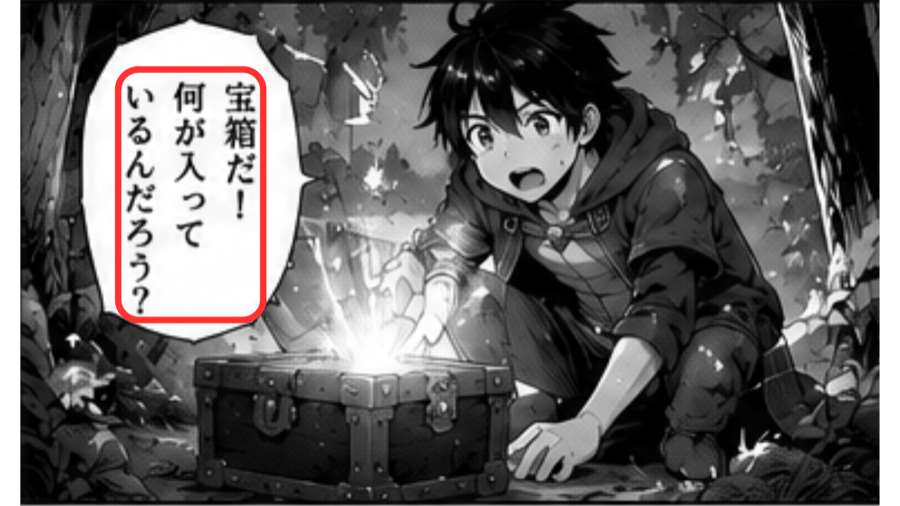
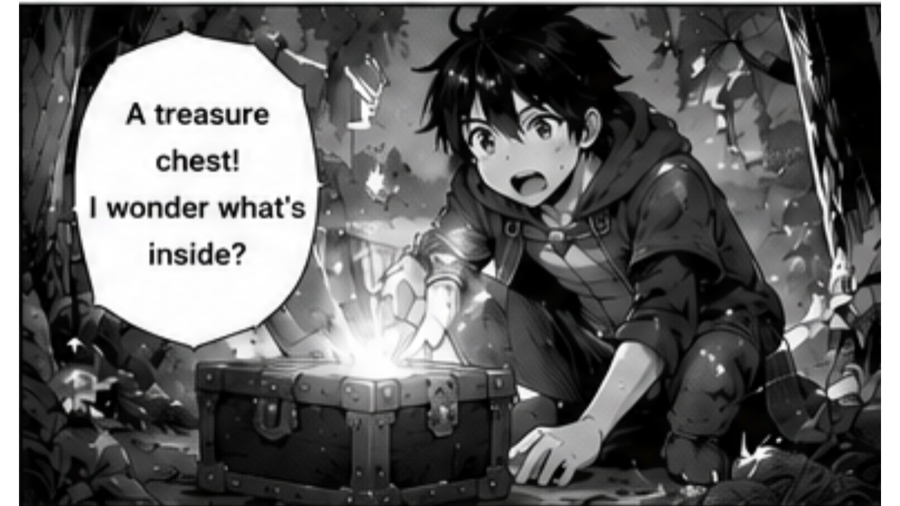
Problem
When you only have PNG, JPG, or WebP pages, you usually need separate tools for OCR, translation, image editing, and reading the final result.
Solution
Upload image pages, let the app prepare the chapter, run OCR and Gemini AI translation, then read the rendered result in Reader View.
Workflow
Paste a manga website URL or upload PNG, JPG, and WebP images.
OCR reads text areas from speech bubbles and page artwork.
Gemini AI translates dialogue using your own API key.
The app renders translated text back onto the page for Reader View.
Highlights
Questions
Yes. Comics Translate supports local PNG, JPG, and WebP image uploads for chapters you want to translate.
No. A URL is supported, but local image upload is also part of the workflow.
The desktop app stores chapter data and rendered pages in its local app data folder on your Mac.
Yes. Comics Translate includes Reader View so you can open translated chapters and read them in the app.